Know in 3 seconds if anything is on fire.
AWS monitoring for one-person teams. Multi-account. Multi-region. On your phone and wrist.


Tired of opening the AWS console just to check if something is broken?
OpsGlance shows the health of every account and region in one glance.
The whole account, one glance
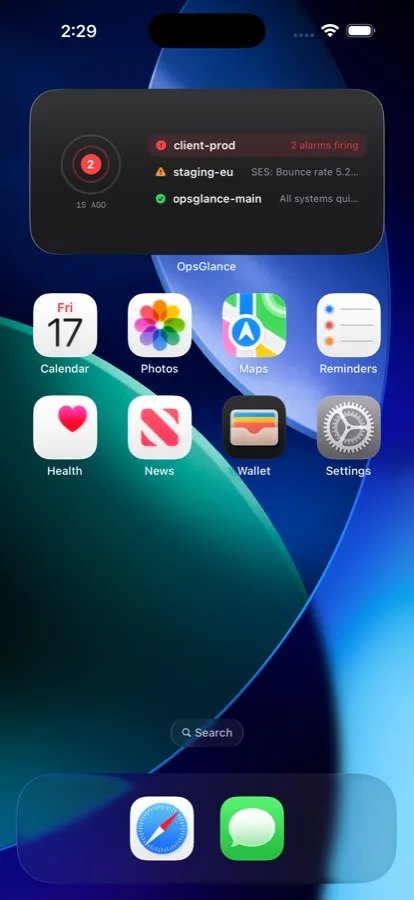
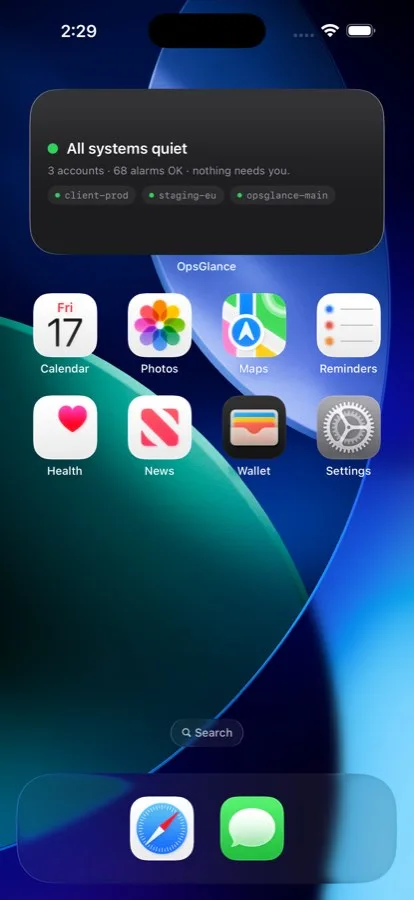
Real screens, real fires. Red sorts first, quiet stays quiet, and money is never a status.
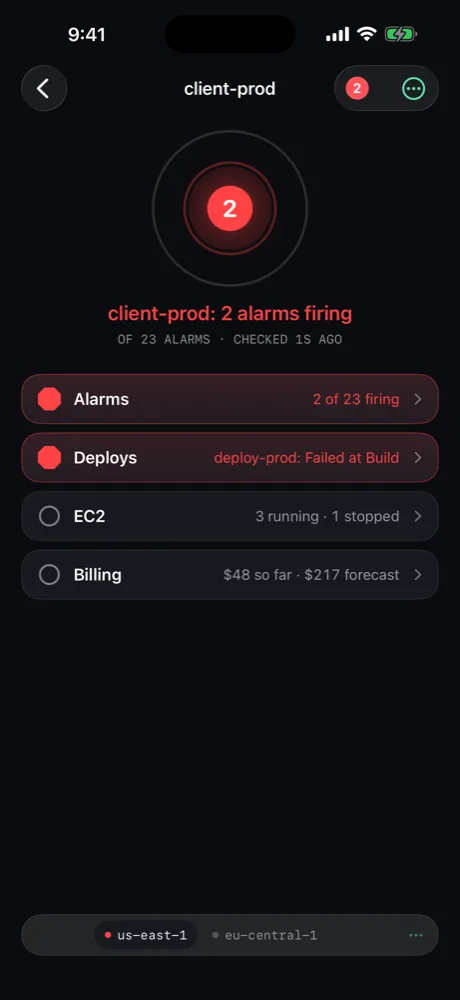 View - Firing
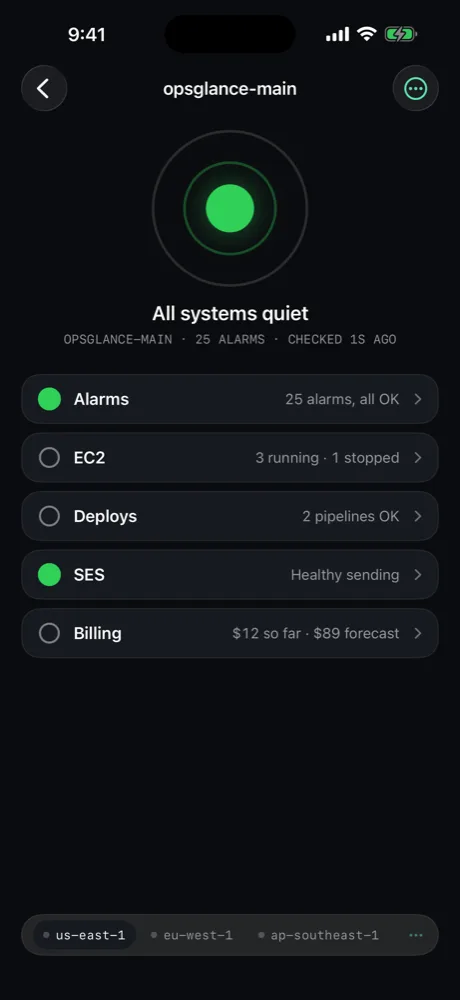 View - All quiet
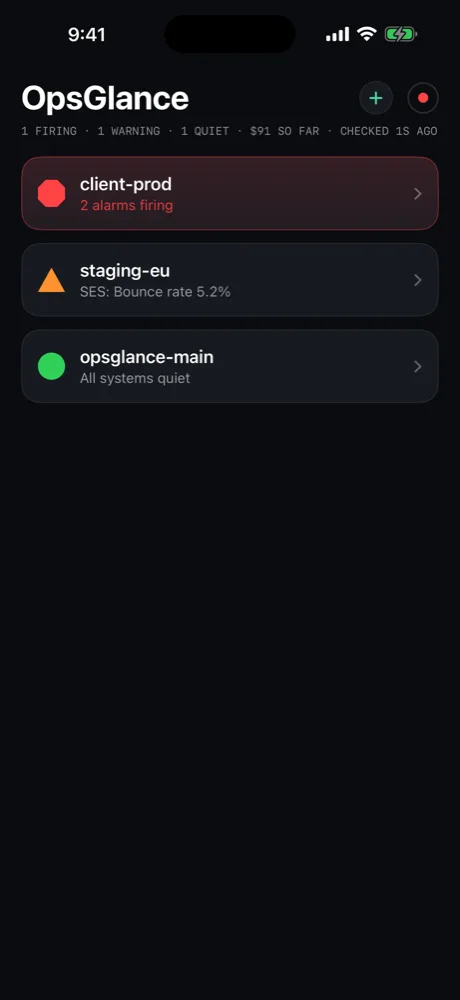 View - Every account
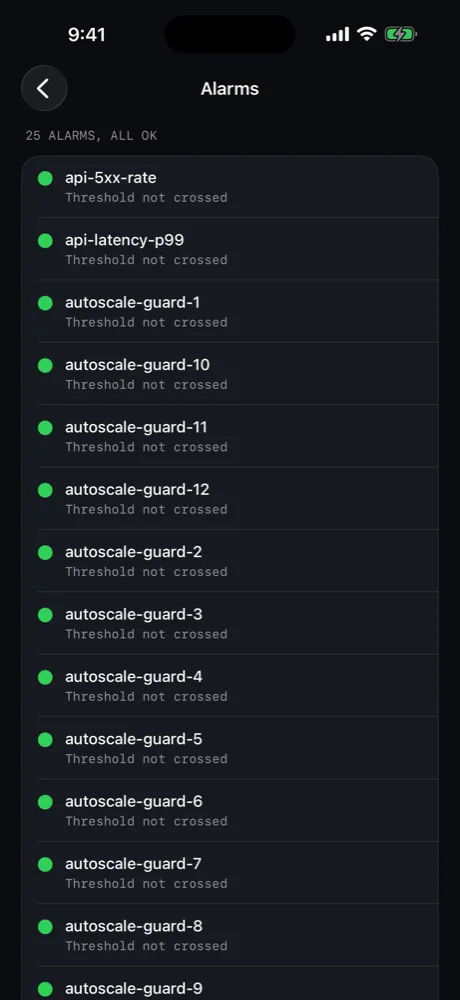 View - The receipts
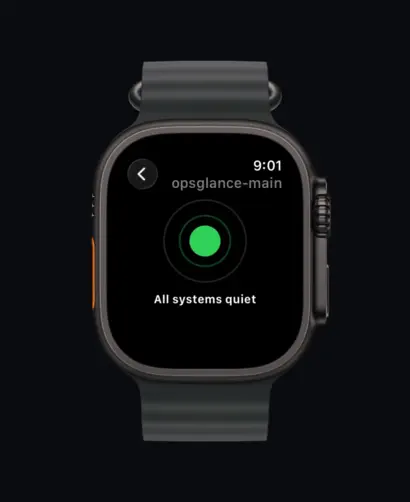
Down to a single dot
Widgets and a watch complication. A green dot on your wrist means go back to your weekend.
Built for the 3-second check
Every account, one screen
All your client accounts and regions, worst first. Red sorts to the top - you never scroll to find the fire.
The moment it fires
Real-time push when an alarm trips, a deploy fails, or health degrades - not a digest email you read after the client calls.
Watch and widgets
Apple Watch app and complication, Home Screen widgets, an 8-hour timeline. A green dot on your wrist means go back to your weekend.
Every region, found for you
OpsGlance discovers the regions you actually use and docks them at the bottom of every account. No region picker, ever.
Keys never leave the phone
Read-only IAM keys stored in the device Keychain. No accounts, no sign-up, no analytics. Your AWS stays yours.
Start free. Upgrade anytime
$0 forever
- One AWS account
- Full dashboard, every region
- Delayed alerts
- No card, no sign-up
$3.99/mo or $34.99/yr
- Unlimited accounts
- Real-time push notifications
- Home Screen widgets
- Apple Watch app and complications
Three steps to quiet
Create a read-only IAM user
One tap in the app: a CloudFormation quick-create makes the user with the read-only policy. Or paste the CLI one-liner.
Add the access key
Paste the key into the app. It's validated against AWS, stored in the device Keychain, and never sent anywhere.
Glance
Every account, every region, worst first. Get pushed the moment something breaks.
Your AWS keys never leave your device.
No accounts. No tracking. No data collection.